EMBROIDERY, CONSIDERED.

Every stitch.
Your signature.

From your first outline to the final needle movement. A native Mac studio for turning artwork into embroidery—with the tools to make every detail your own.

macOS 14+ · Apple Silicon · Works locally

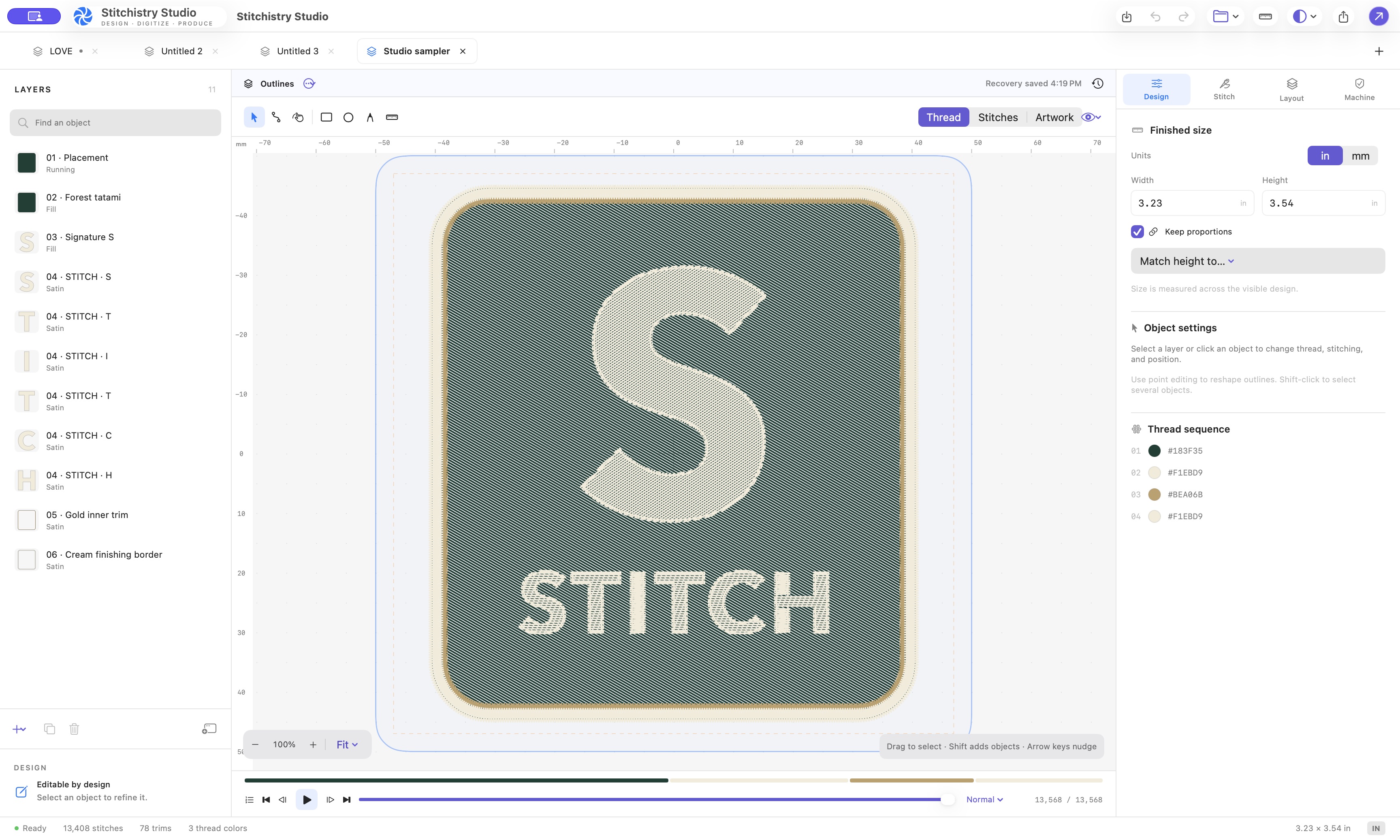
The real Stitchistry Studio Mac app with an embroidery design, document tabs, layers, design tools, and sewing timeline. View full size
STITCHISTRY STUDIO · THE ACTUAL MAC APPArtwork. Outlines. Stitches. One workspace.
Native to macOSEditable from outline to stitchLocal by designTajima DST export

From image
to stitch file.

Follow a PNG monogram through the actual Mac app: trace and edit the design, preview its stitches, then export and reopen the DST file.

SILENT DEMO · EDITED FOR PACEOpen video
  1. Bring in the artwork.

    Trace a PNG, remove its background, and resize the design with proportions preserved.

  2. Make it your own.

    Adjust fill settings and Bézier handles, then play the live stitch simulation.

  3. Review. Then export.

    Review dimensions and warnings, export the package, and reopen the DST to inspect its needle commands.

Read the walkthrough

A PNG monogram is imported with its black background removed. The artwork becomes editable embroidery outlines, and the design width is changed from 4 inches to 2 inches with proportions preserved.

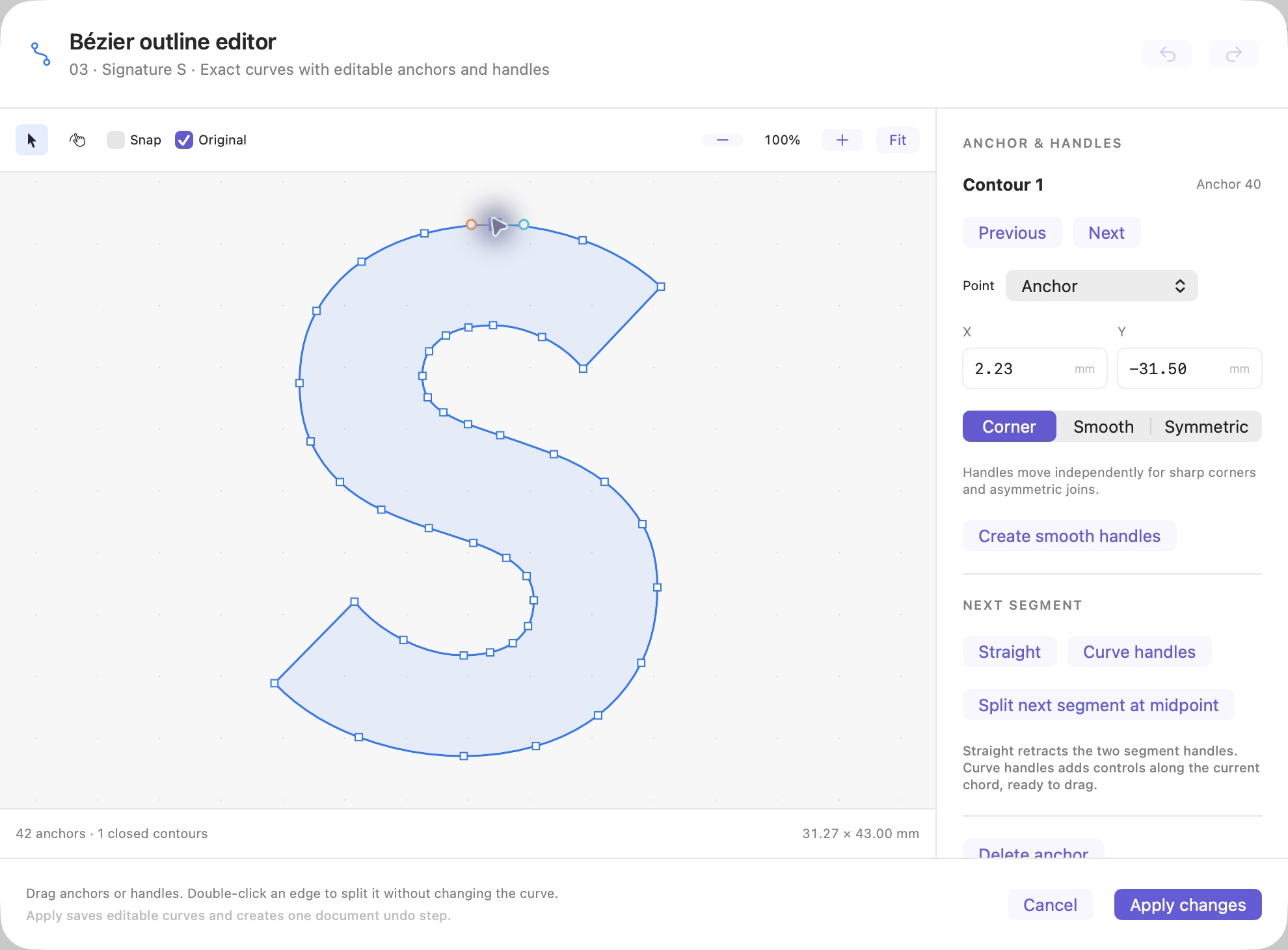
The fill angle is set to 45° and the cotton hoodie preset is applied. In the Bézier editor, an anchor is selected, smooth handles are created, and the change is applied. The stitch simulation then plays the sewing sequence, accelerated in this recording.

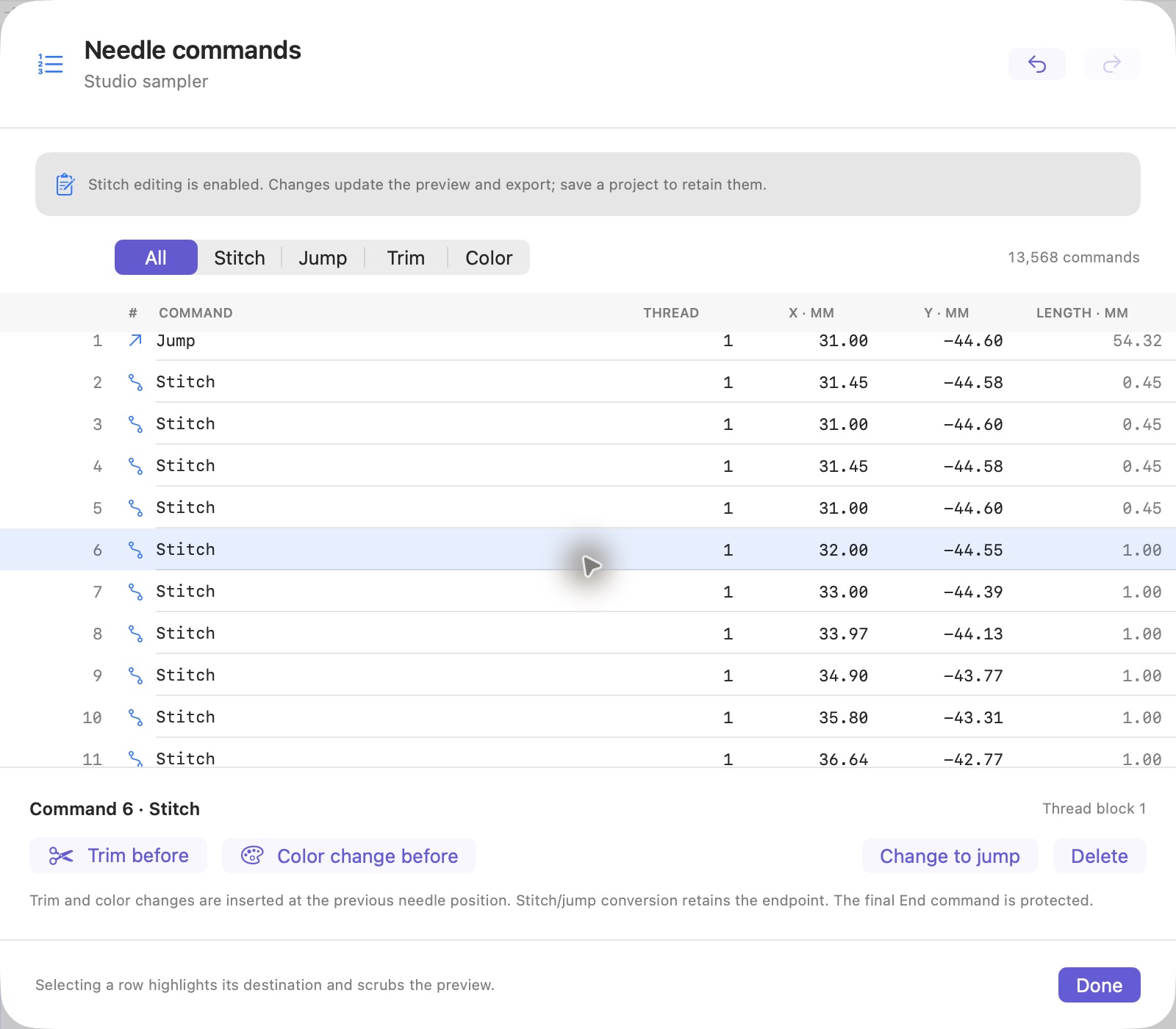
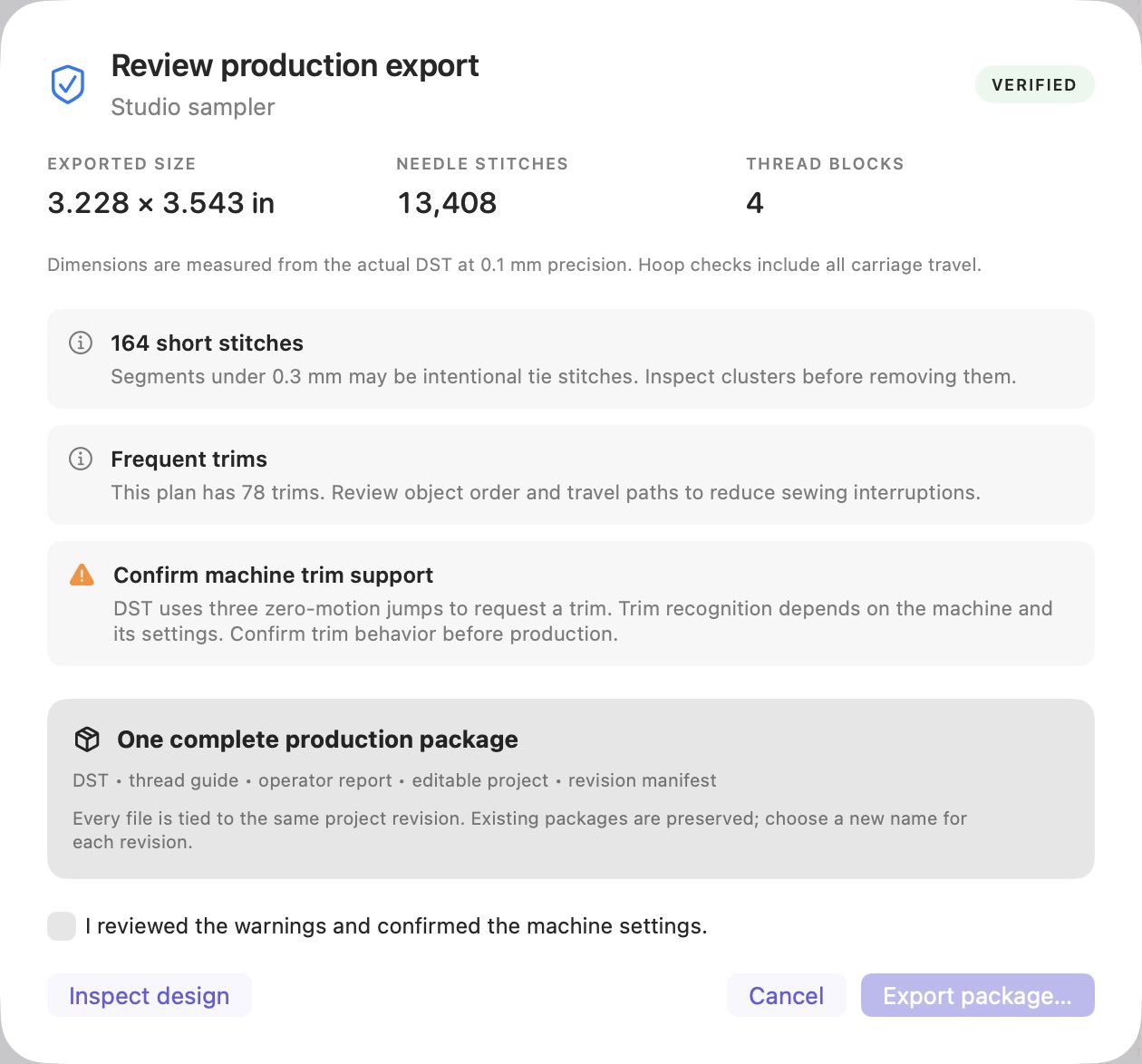
The export review displays dimensions measured from the encoded DST alongside machine warnings. A production package is saved, including the DST and editable project. The exported design.dst file is reopened in Studio, where its individual needle commands can be inspected.

This software demonstration is edited for pace. Test the exported design on your target machine before production.

Get closer
to the detail.

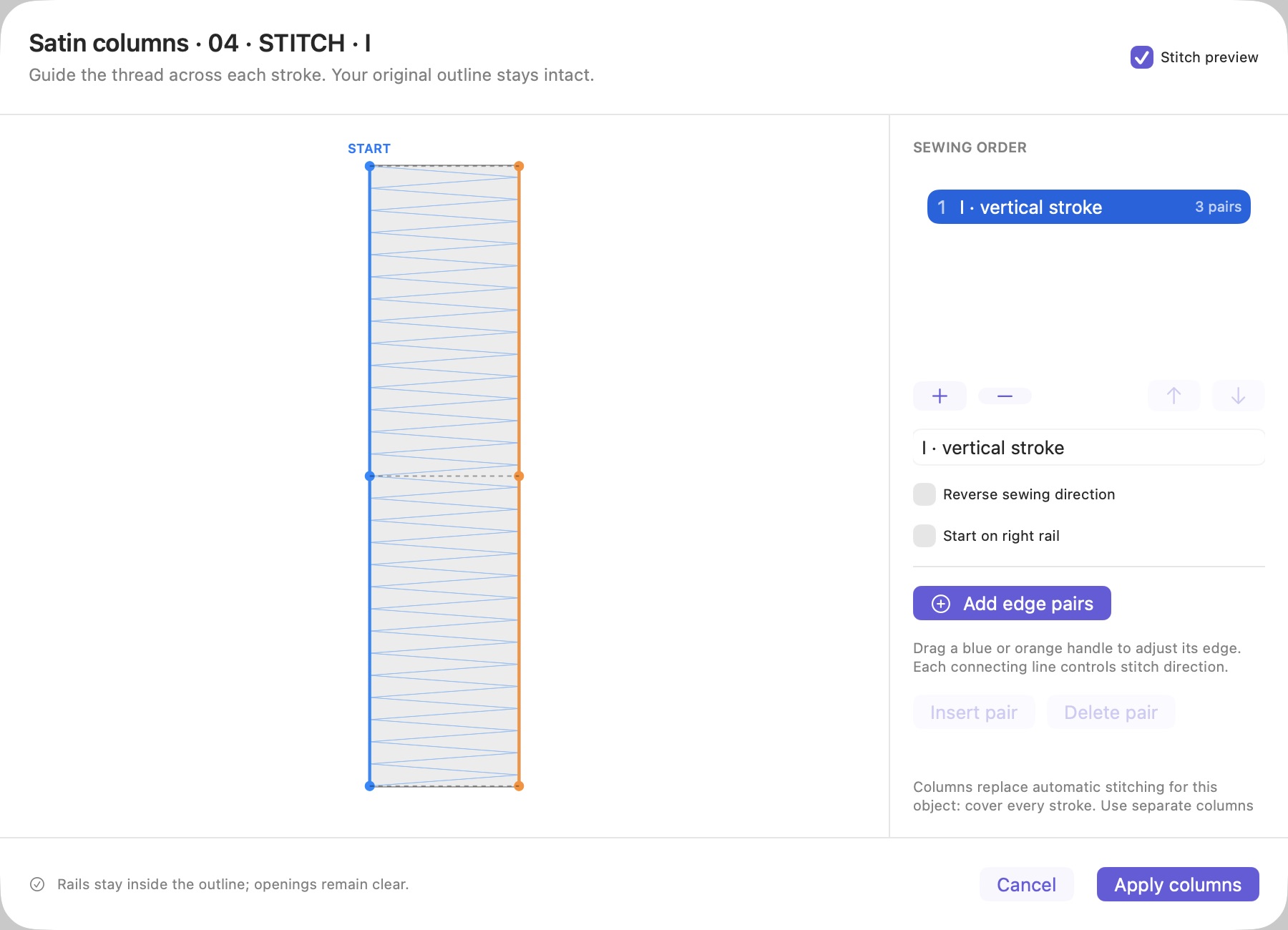
Explore the actual app, from editable curves and satin rails to individual needle commands and the final export review. Select a view, then open it full size.

I.

Stay in your flow

Document tabs, separate windows, keyboard shortcuts, and a command palette put the next action within reach.

II.

Make it your workspace

Light, dark, or system appearance. Rulers, grids, snapping, source overlays, and flexible canvas views.

III.

Keep the original

Source artwork, editable outlines, stitch settings, and retained needle edits live together in your project.

Creative freedom.
Practical precision.

Trace and shape your artwork, engineer the stitches, then prepare a reviewed production handoff. Here’s what’s inside Studio today.

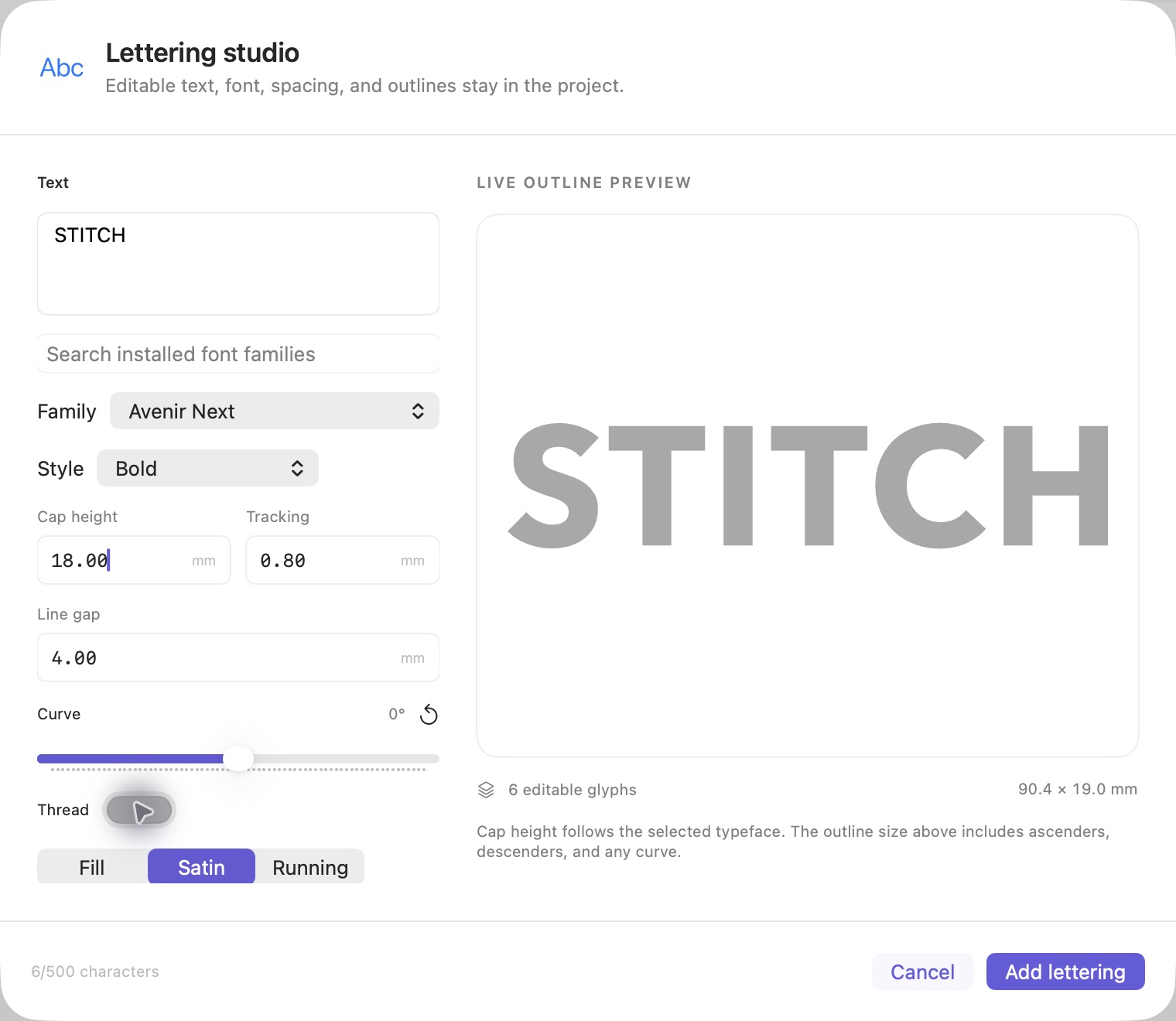
Stitchistry Studio lettering editor with a live outline preview and controls for font, size, tracking, line spacing, and curvature. View full size
LETTERING, WITH ROOM TO REFINE

Type it.
Then make it yours.

Find the right font, adjust the spacing, and shape the line. Preview your lettering before adding it to the canvas, then keep its recipe and individual glyphs editable.
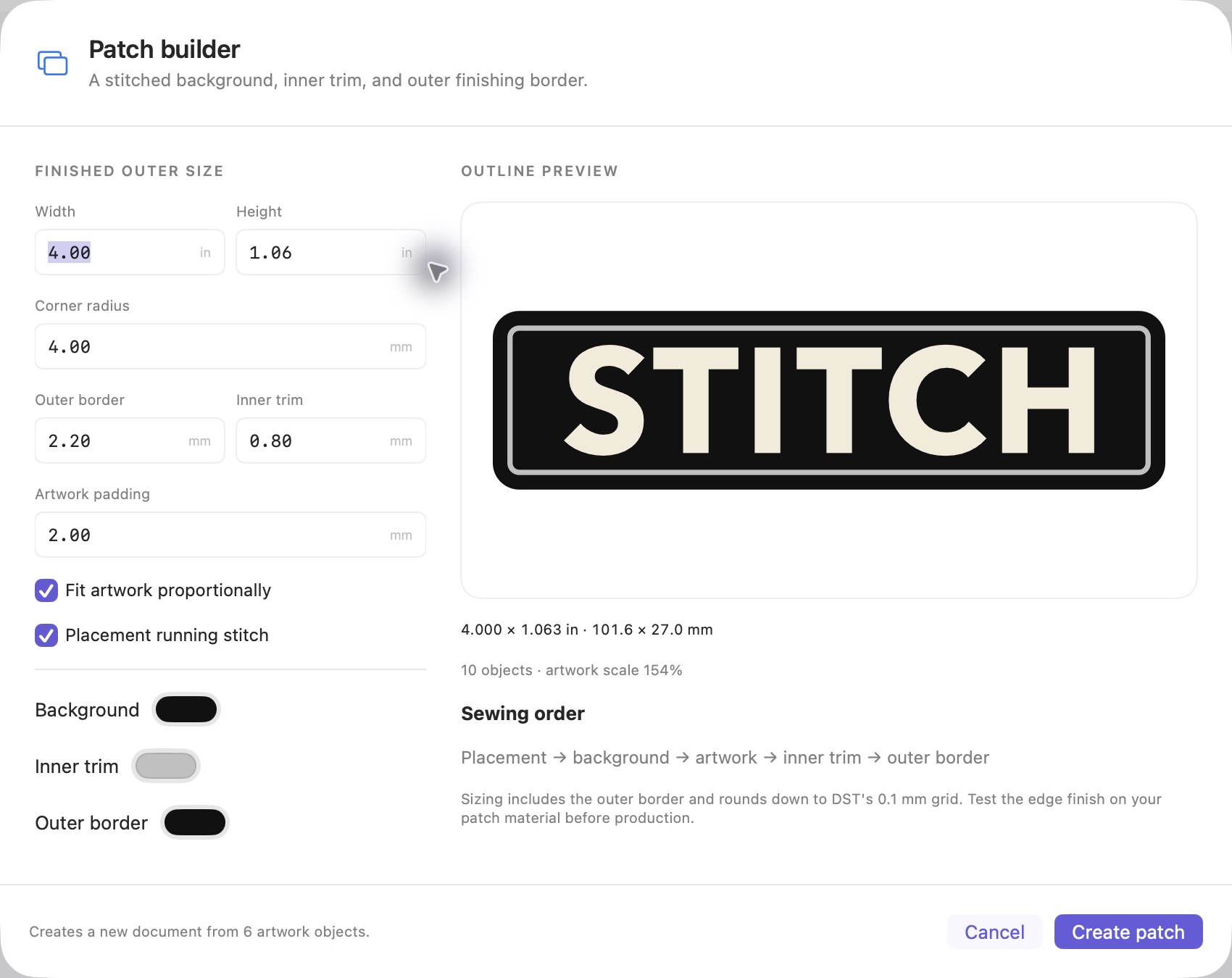
Stitchistry Studio patch builder with controls for patch size, stitched background, inner trim, and outer finishing border. View full size
PATCHES, BUILT IN LAYERS

A mark.
A finishing touch.

Build the placement, stitched background, inner trim, and outer finishing border as editable layers. Set the dimensions, refine the details, and review the sewing order.

01

Artwork & lettering

Image tracing, with control
Import PNG, JPEG, HEIC, TIFF, or BMP. Refine colors, background removal, outline detail, simplification, and small islands.
Lettering with its character intact
Use installed fonts and styles. Adjust cap height, tracking, line spacing, and single-line curvature with a live outline preview.
Recipes you can revisit
Keep the lettering recipe and source image alongside editable glyph outlines. Compare your shapes with the source overlay.
02

Shape & composition

Editable Bézier geometry
Refine anchors, handles, and exact coordinates. Split curves without changing their shape, with dedicated undo and redo.
A complete layout toolkit
Draw shapes, edit nodes, align, mirror, rotate, repeat in grids, and distribute equal gaps. Organize, lock, hide, and reorder layers.
Match a collection’s size
Give several designs a shared height while keeping every design within a maximum width. Proportional scaling preserves spacing.
03

Stitch engineering

Fill, satin, and running stitches
Choose tatami patterns, spacing, angle, stitch length, underlay, pull compensation, tie stitches, and running passes.
Satin that follows your design
Edit paired rails and multiple sections for lettering. Set sewing order and direction; geometry checks flag invalid rails.
Fabric presets & patch construction
Start from cotton, hoodie, piqué, twill, or lightweight presets. Build patches with placement, stitched background, inner trim, and an outer finishing border.
04

Needle-level refinement

A view of every movement
Play, pause, scrub, and step through the sewing sequence. Jump between thread blocks and reveal jumps or needle points.
Direct command editing
Move stitch points, insert trims or color changes, switch stitches and jumps, and remove commands with undo support.
Both versions, preserved
Return to outline editing or resume your retained stitch edits. Studio flags a stored stitch plan when its source outlines have changed.
05

Production & handoff

Validation against the actual DST
Check encoded dimensions, hoop margins, travel, and saved size limits. Review long or tiny stitches and untrimmed jumps.
Jobs, thread plans & sew-outs
Record quantities, materials, stabilizer, needle, machine, thread specifications, and operator notes. Log sample measurements and revision-specific results.
Reviewed export packages
Export DST with its editable project, thread list, production report, and checksums. Review multiple open designs together in a batch.
06

Continuity & confidence

Autosave & workspace recovery
Recover open tabs and working edits, including untitled designs. Save named project revisions and restore an earlier point in your work.
Local & shared-folder libraries
Publish approved snapshots to a local folder or mounted network share. Verify package integrity and open a fresh working copy for the next revision.
A native app that stays current
Work locally without an account. Developer ID signing, Apple notarization, and signed software updates are included.

Made to make.
Made to refine.

Your project is the place to keep creating. Your DST is the file for the machine. Studio keeps both parts of the process within reach.

  1. 01

    Bring the artwork.

    Import an image, set lettering, or open an existing DST. Establish the design’s size and shapes.

  2. 02

    Make the decisions.

    Refine curves, stitch direction, underlay, and sequence. Review the needle path as you go.

  3. 03

    Review the handoff.

    Validate the DST and export a package that keeps the editable design and production details together.

  4. 04

    Learn from the sew-out.

    Test on your fabric and stabilizer, record the result, and return to the saved project to refine it.

Studio currently exports Tajima DST. Keep the editable .stitchproject for future changes; DST stores needle movements. A physical sew-out is part of the process.

YOUR NEXT DESIGN STARTS HERE.

Make room
for Stitchistry.

A focused workspace for the art and detail of embroidery.

Stitchistry Studio

macOS 14 or later · Apple Silicon

Version 0.5.0 · Build 7
Developer ID signed and notarized for macOS.

Download for Mac

ZIP · 4.6 MB · SHA-256 checksum
Signed automatic updates included.